




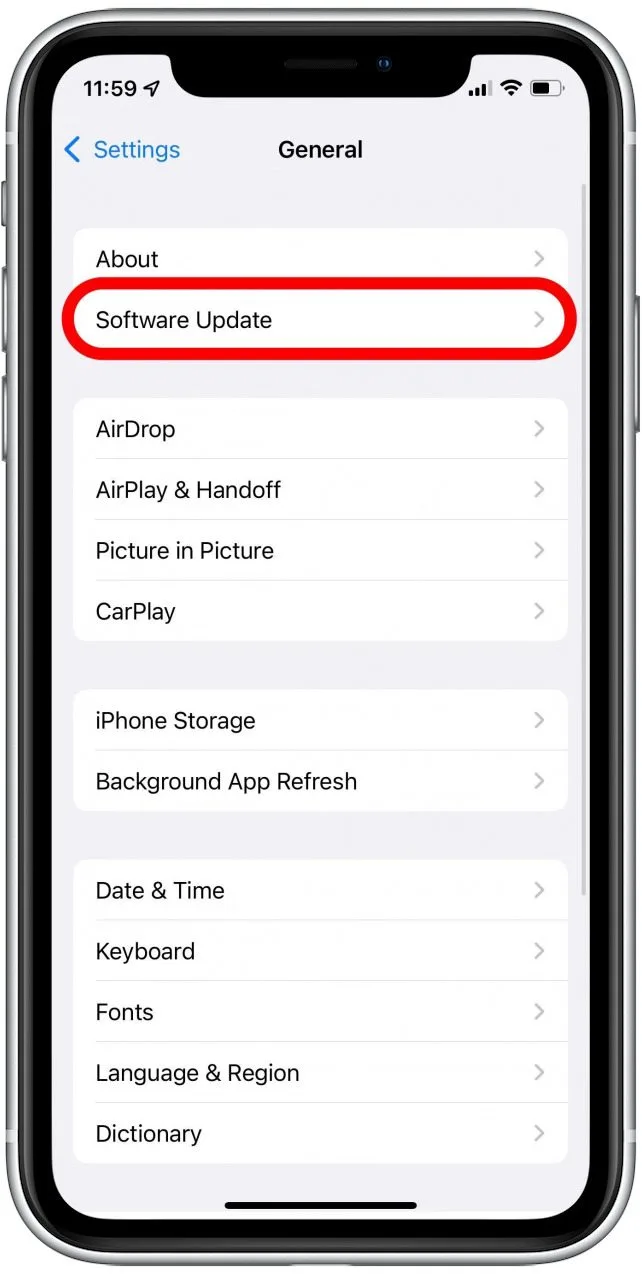
Åben Indstillinger på din iPhone, naviger til Generelt → Softwareopdatering , og så download og installer den nyeste iOS-version.
Sådan rettes Find min iPhone forkert placering?
Indhold
Find min iPhone er et af Apples vigtigste værktøjer til enhedssikkerhed, sporing og deling af familiens placering. Det hjælper dig med at finde en mistet enhed, overvåge dine børns opholdssted og beskytte dine data, hvis din iPhone bliver væk eller stjålet. Men når Find min iPhone viser forkert placering – nogle gange kilometer væk fra det faktiske sted – bliver det frustrerende og endda alarmerende.
Heldigvis skyldes unøjagtige Find My iPhone-lokationsdata næsten altid problemer, der kan rettes, relateret til GPS-signaler, Wi-Fi-netværk, softwareproblemer eller enhedsindstillinger. I denne omfattende guide lærer du, hvorfor Find My iPhone kan vise den forkerte placering, og hvordan du løser problemet trin for trin.
1. Hvorfor viser Find min iPhone den forkerte placering?
Find min iPhone fungerer ved at kombinere GPS, mobilmaster, Bluetooth og Wi-Fi-netværk for at præcist finde din placering. Når et af disse systemer fejler eller giver unøjagtige data, kan den placering, der vises på kortet, være forkert.
Nedenfor er de mest almindelige årsager til, at Find min iPhone viser den forkerte placering:
- Svagt eller blokeret GPS-signal
- Dårlig Wi-Fi- eller mobilnetværksforbindelse
- Placeringstjenester eller Præcis placering er slået fra
- Enhed offline, slukket eller batteri fladt
- VPN- eller proxy-interferens
- Forældet iOS eller softwarefejl
- Kalibreringsfejl i Apple Maps
- Fysiske forhindringer som bygninger, tunneler eller dårligt vejr
At forstå disse årsager gør det lettere at løse problemet.
2. Hvordan retter man fejlen "Find min iPhone"?
Nedenfor er effektive, praktiske løsninger til at løse unøjagtigheden i Find min iPhone. Du kan udføre alle disse uden behov for avanceret teknisk viden.
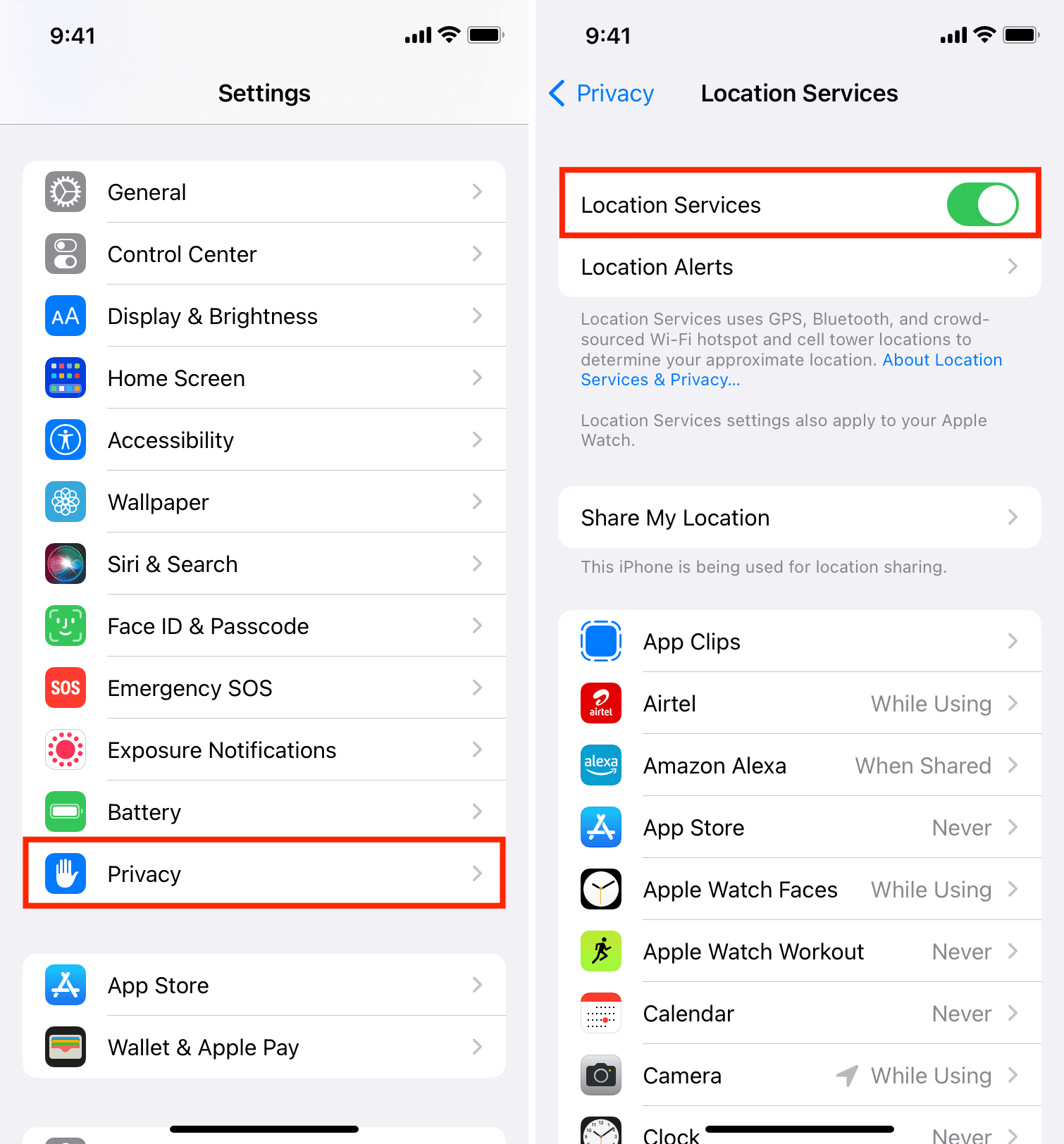
2.1 Slå Lokationstjenester til
Find min afhænger helt af disse indstillinger.
Åben
Indstillinger →
Gå til
Privatliv →
Vælge
Lokationstjenester →
Skift
Lokationstjenester
PÅ
→
Rul ned og sørg for
Find min
er indstillet til
Altid
.
2.2 Aktivér præcis placering
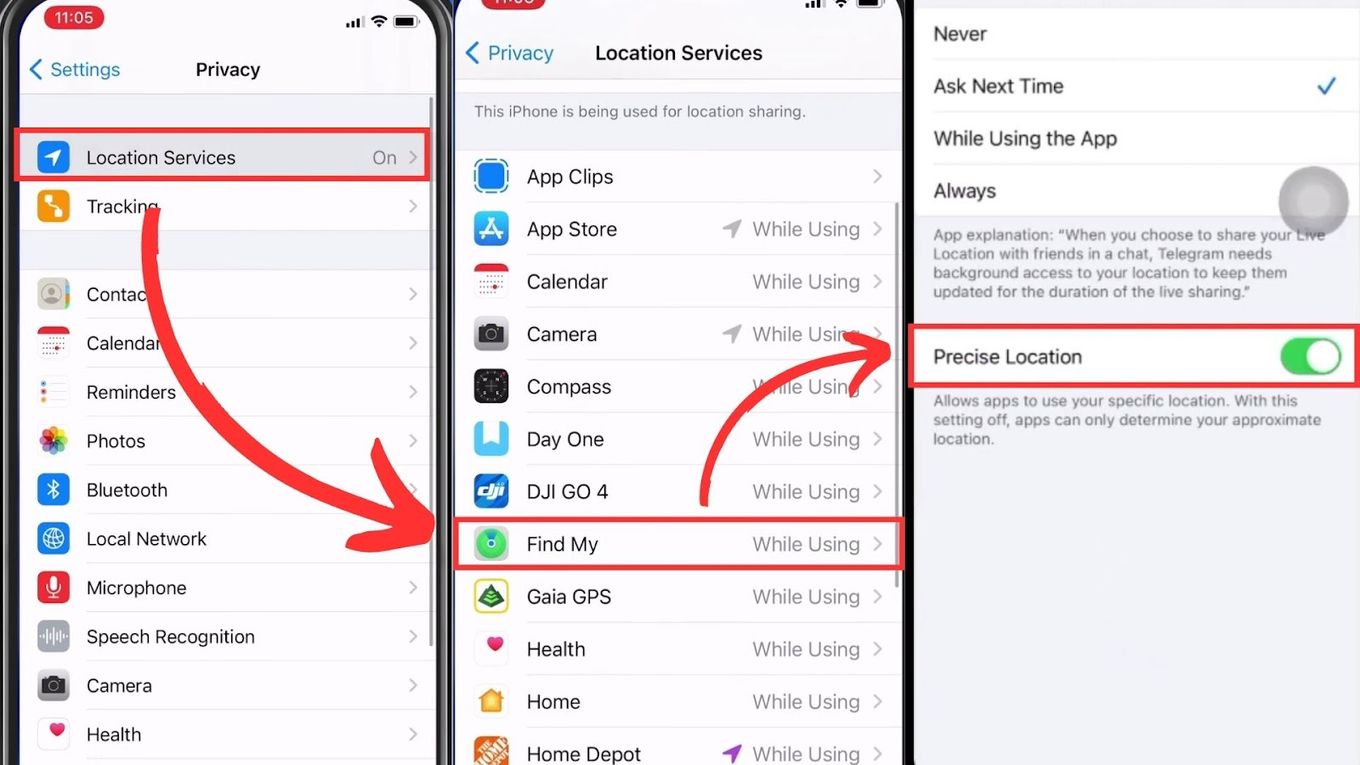
Hvis Præcis placering er deaktiveret, viser Find min kun et groft anslået område.
Gå til
Indstillinger → Privatliv og sikkerhed → Placeringstjenester →
Tryk på
Find min →
Tænd
Præcis placering
2.3 Slå Wi-Fi til (selv uden forbindelse)
Wi-Fi forbedrer geoplaceringsnøjagtigheden betydeligt, selv når du ikke er forbundet.
Stryg ned for at åbne
Kontrolcenter →
Aktivér
Wi-Fi
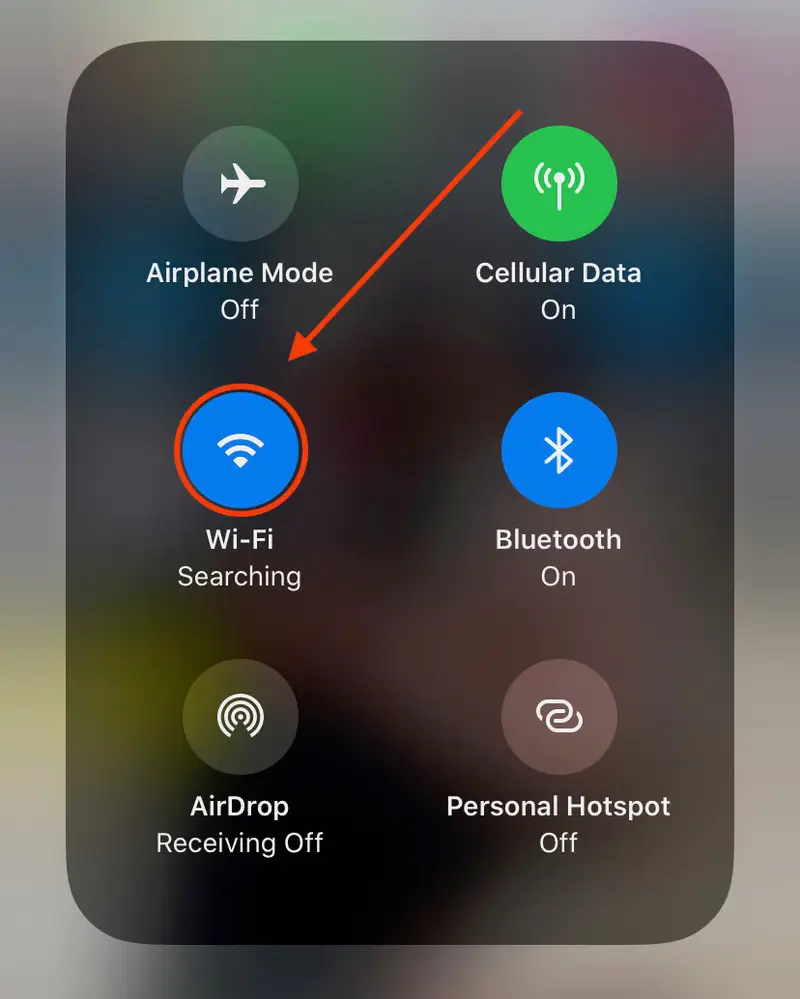
Dette giver yderligere trianguleringspunkter til din iPhone.
2.4 Opdater Find min-appen
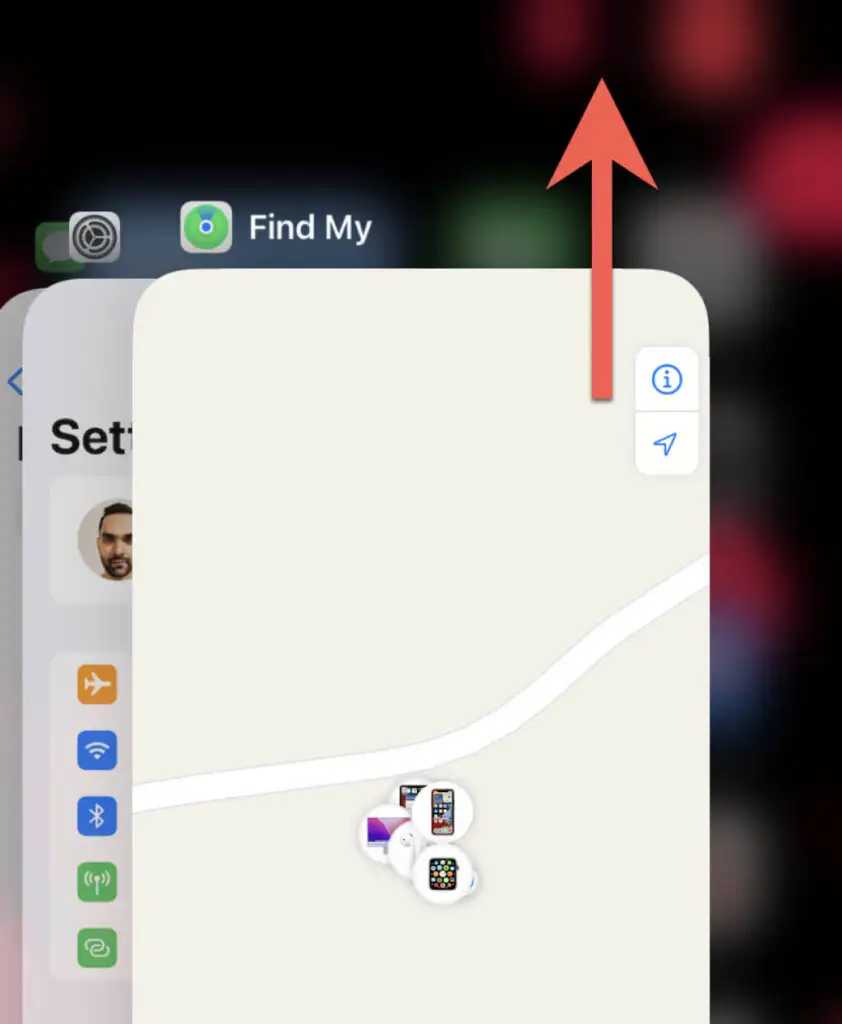
Nogle gange fryser eller cacher Find min gamle data.
Få adgang til
App-skifter →
Tæt
Find min →
Åbn det igen, og opdater kortet
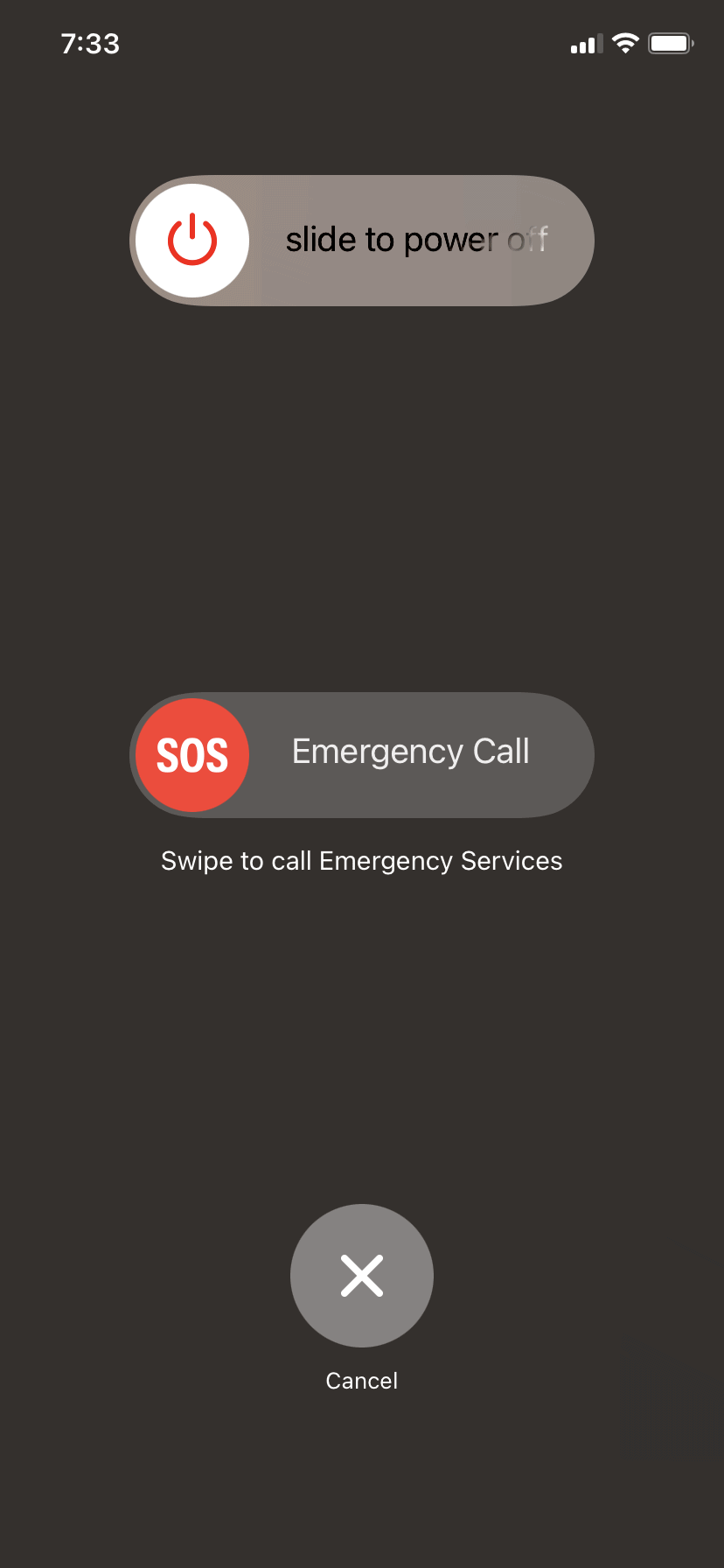
2.5 Genstart din iPhone
En blød genstart nulstiller alle netværksforbindelser og GPS-tjenester.
Holde
Tænd/sluk + Lydstyrke op →
Skub for at slukke
→
Tænd den igen
2.6 Opdater iOS til den nyeste version
iOS-opdateringer retter regelmæssigt GPS-fejl og forbedrer placeringstjenester.
2.7 Nulstil placerings- og privatlivsindstillinger
Hvis dine GPS-data er beskadiget, løser denne nulstilling ofte problemet.
Gå til
Indstillinger → Generelt → Overfør eller nulstil iPhone
→
Nulstil placering og privatliv →
Nulstil indstillinger
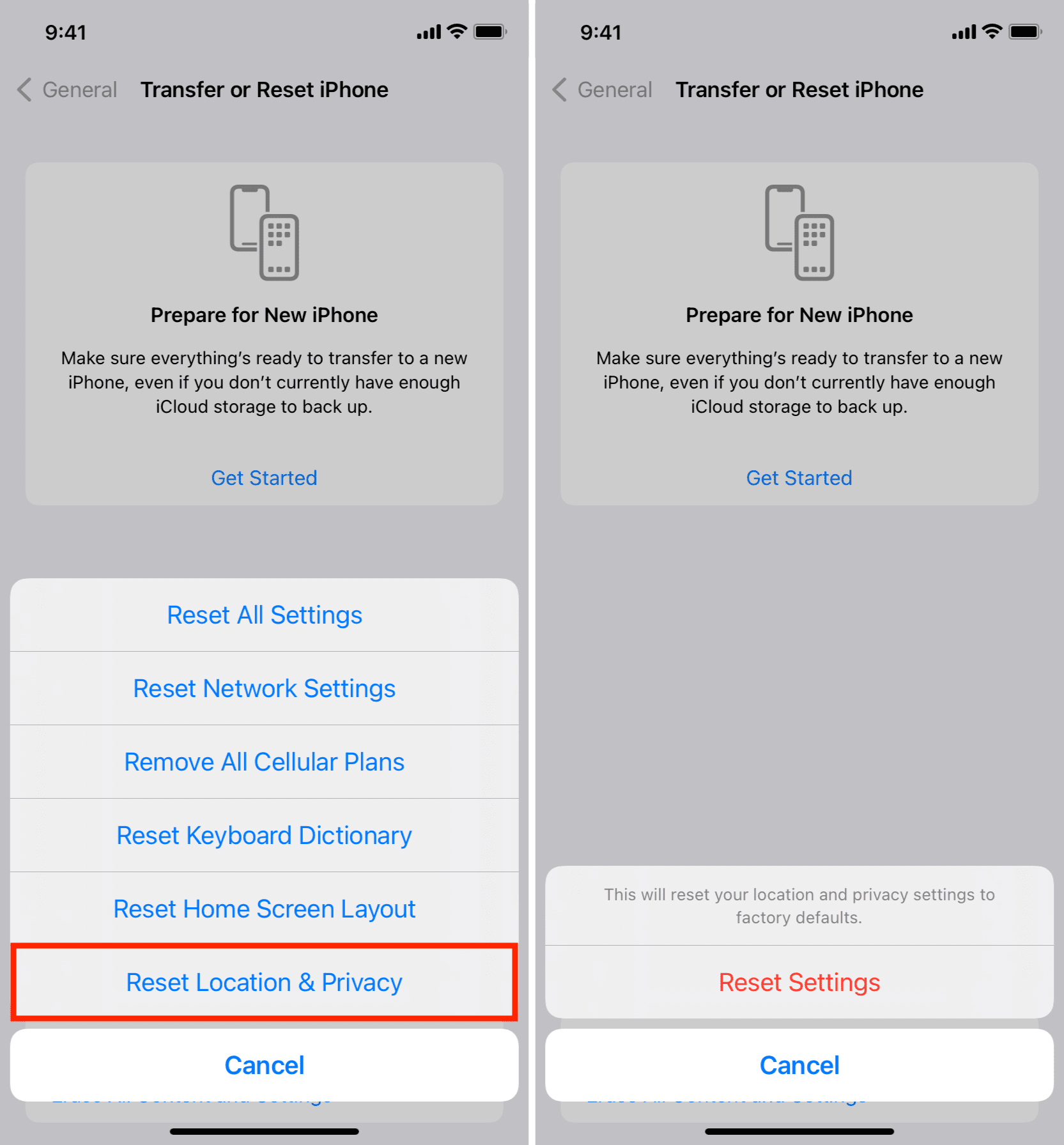
Dette gendanner standardindstillingerne for placering.
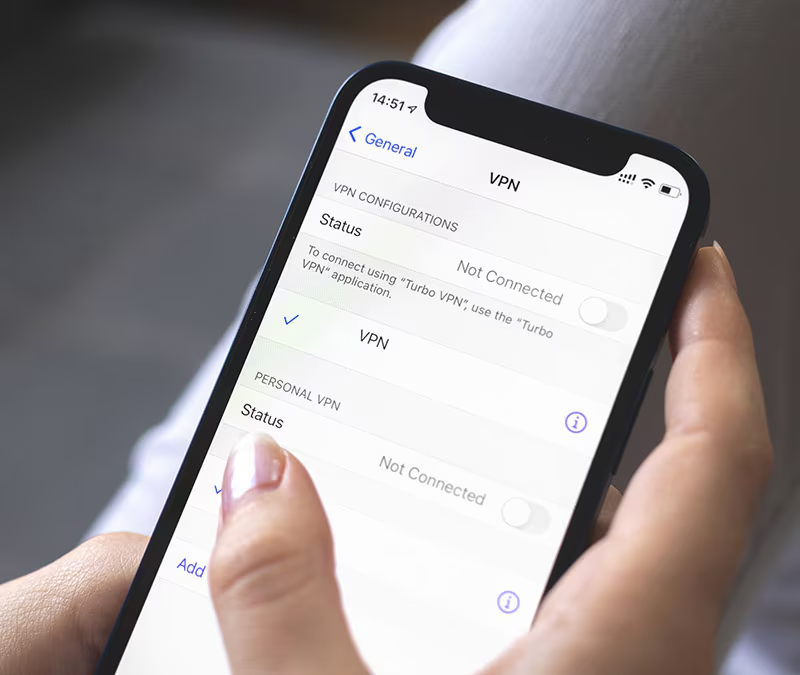
2.8 Deaktiver VPN eller proxy
VPN'er forvirrer nogle gange Find min, fordi de ændrer din netværksrouting.
Sluk alle aktive VPN'er, og kontroller derefter, om Find min opdateres korrekt
2.9 Sørg for, at Find mit netværk er aktiveret
Find mit-netværket tillader offline sporing ved hjælp af Apple-enheder i nærheden.
Gå til
Indstillinger → Apple-id → Find min →
Tryk på
Find min iPhone →
Tænd
Find mit netværk
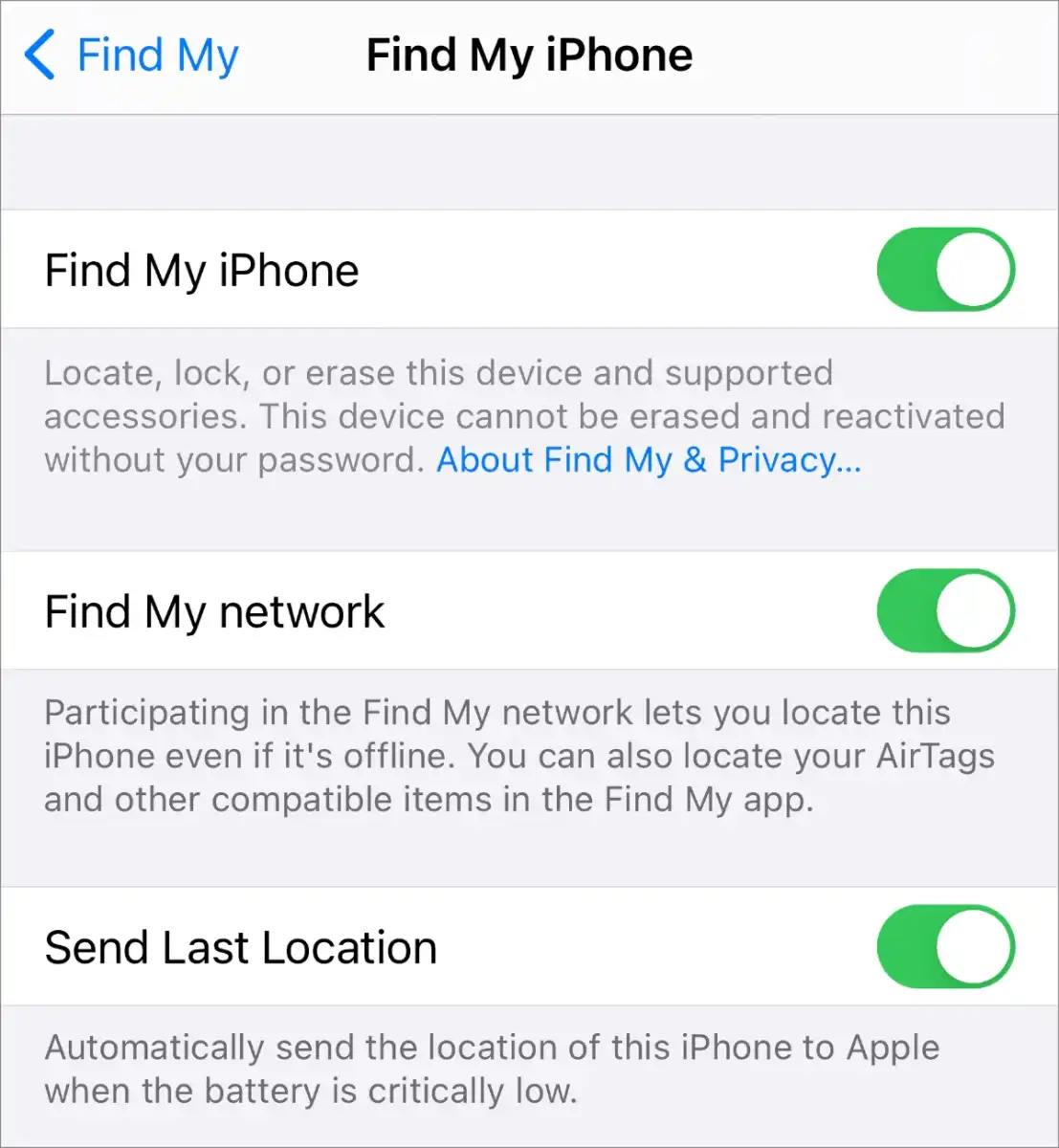
Dette forbedrer nøjagtigheden, når enheden ikke har internetforbindelse.
2.10 Forbedr GPS-signalforholdene
Prøv følgende:
- Flyt udendørs
- Undgå metaltage eller tykke vægge
- Hold afstand fra store bygninger
- Opret forbindelse til et stabilt Wi-Fi-netværk
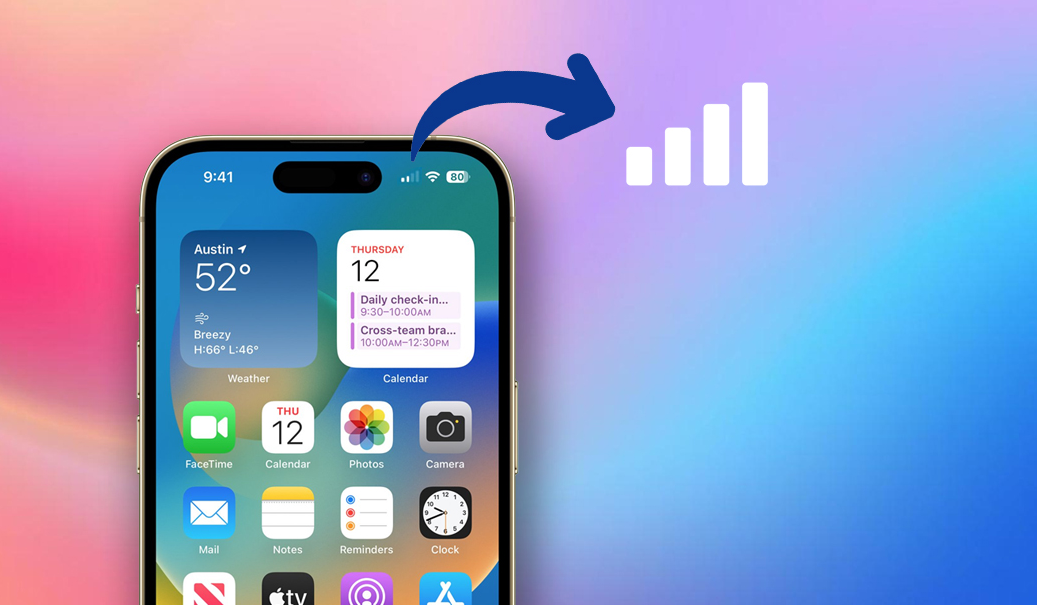
Disse enkle handlinger forbedrer GPS-nøjagtigheden dramatisk.
2.11 Log ind på dit Apple ID igen
Dette fremtvinger en ny synkronisering til Find min-servere.
Gå til
Indstillinger → Apple-id →
Tryk på
Log ud →
Log ind igen
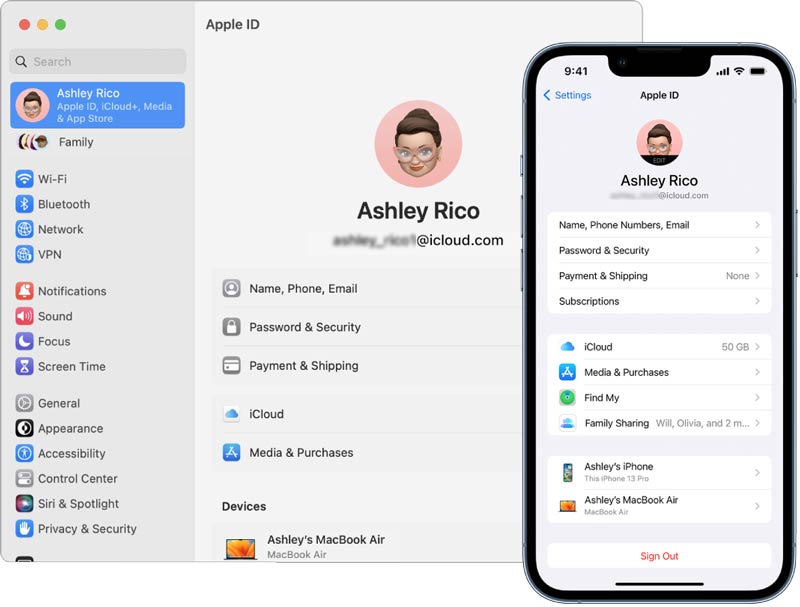
Hvis problemet skyldtes synkroniseringsfejl, vil dette løse det.
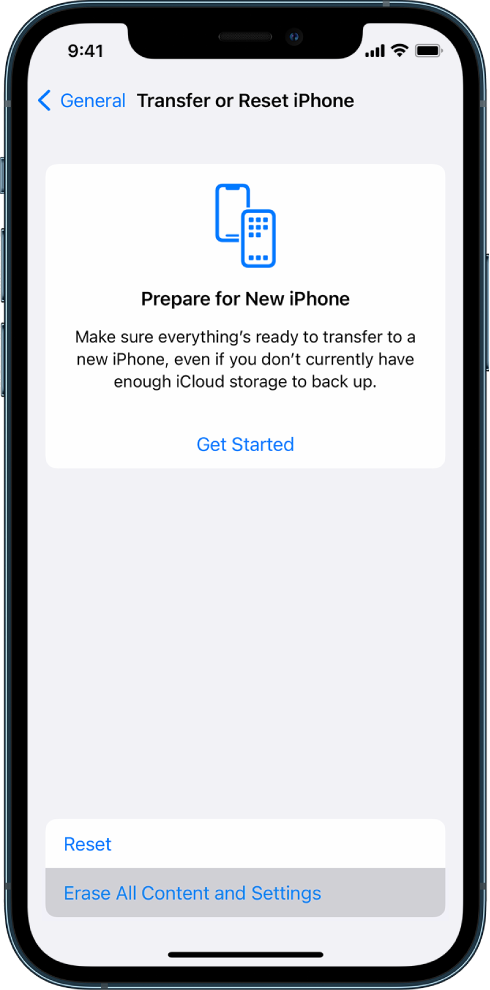
2.12 Gendan iPhone
Hvis intet andet virker, kan en fuld gendannelse muligvis rette dybe systemfejl.
Sikkerhedskopier din iPhone
→
Gendan via
Indstillinger → Generelt → Overfør eller nulstil iPhone → Slet alt indhold og indstillinger →
Konfigurer enheden igen
3. Avanceret løsning og håndtering af forkert placering af iPhone med AimerLab MobiGo
Hvis du stadig oplever forkerte placeringsopdateringer – eller hvis du ønsker mere kontrol over din iPhones GPS-system – kan en avanceret løsning som f.eks. AimerLab MobiGo kan hjælpe.
MobiGo er en professionel GPS-positionsskifter til iOS, der giver dig mulighed for at ændre, fryse eller simulere din enheds placering med et enkelt klik. Den fungerer uden jailbreaking og er ideel til fejlfinding eller administration af placeringsbaserede apps.
Nøglefunktioner i AimerLab MobiGo:
- Skift GPS-placering til hvor som helst i verden med et enkelt klik.
- Simuler gang- eller køreruter med tilpasset hastighed.
- Frys din placering for at forhindre Find min opdatering
- Fungerer med Find min, Kort, AR-spil, Life360, sociale apps og mere
- Understøtter både iOS- og Android-enheder.
Sådan bruger du MobiGo til at rette Find min iPhone forkert placering:
- Download og installer AimerLab MobiGo på din Windows/Mac-enhed.
- Tilslut din iPhone via USB og vælg Stol på denne computer hvis du bliver bedt om det.
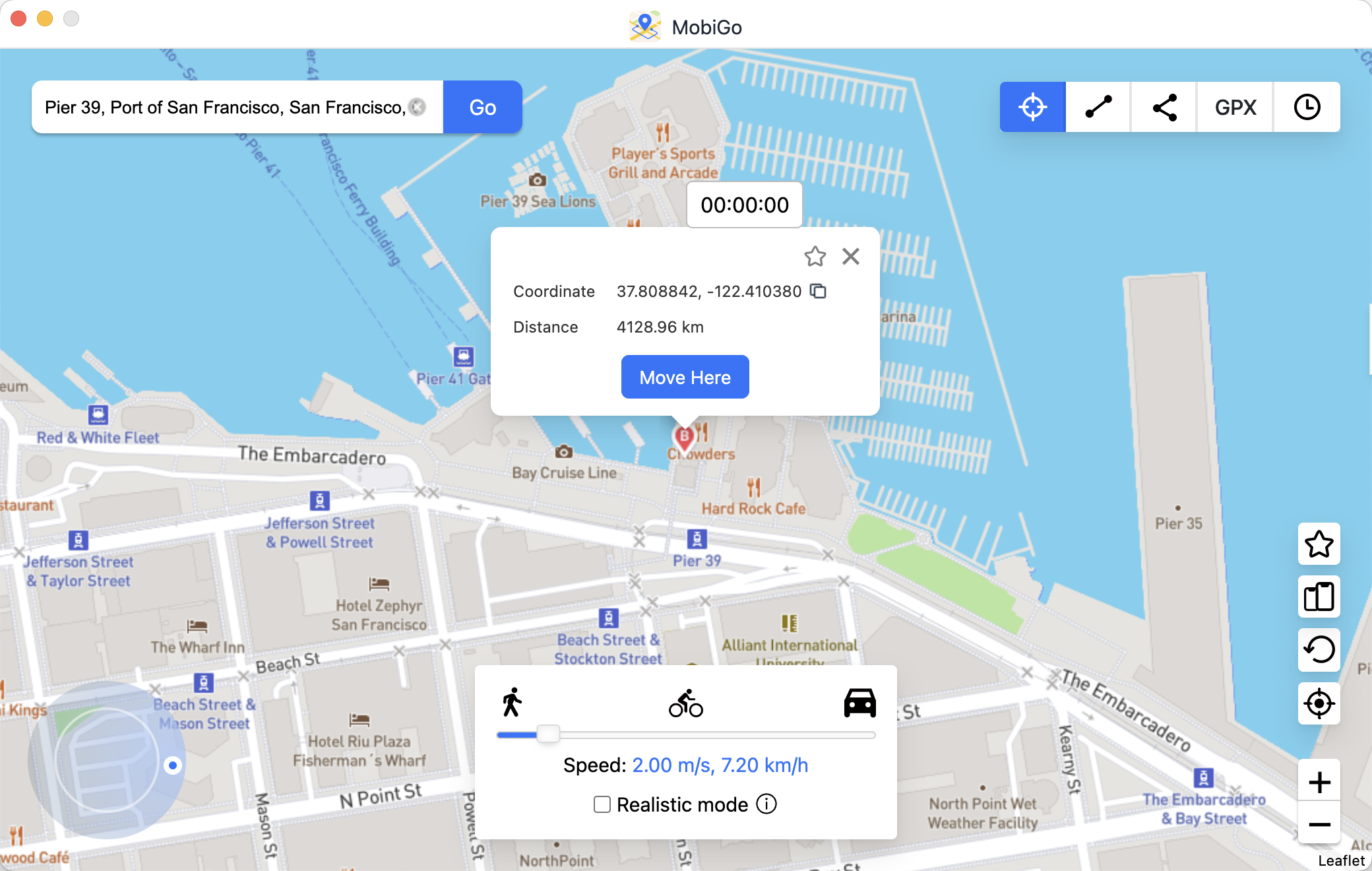
- Åbn MobiGo, og vælg Teleporttilstand, og søg derefter efter en placering, du vil indstille.
- Klik på Flyt hertil for at opdatere din iPhones GPS-position.
- Åbn Find min på din iPhone eller en anden enhed – dens placering opdateres til den nye (korrigerede) placering.
3. Konklusion
Find min iPhone er et effektivt værktøj, men forkerte placeringer kan forekomme på grund af GPS-interferens, svage netværkssignaler, deaktiverede indstillinger, forældet software eller systemfejl. Heldigvis kan de fleste problemer løses med enkle trin såsom at aktivere Placeringstjenester, aktivere Wi-Fi, opdatere iOS, nulstille placeringsindstillinger eller forbedre GPS-signalforholdene.
For brugere, der ønsker en mere avanceret, præcis og fleksibel måde at administrere deres iPhones placering på – eller at fejlfinde vedvarende Find min-unøjagtigheder – er AimerLab MobiGo den anbefalede løsning. Den giver fuld kontrol over dine GPS-data, hjælper med at diagnosticere placeringsproblemer og tilbyder effektive funktioner til test, simulering og korrektion.
Hvis du har brug for en pålidelig og effektiv måde at rette forkerte iPhone-lokationsdata på,
MobiGo
er det bedste værktøj til at forbedre og administrere din enheds GPS-ydeevne.
Hotte artikler
- Hvorfor virker min lommelygte ikke på min iPhone?
- Sådan løser du problemet med "Opgraderet iPhone eller nu fungerer iPhone-spejling ikke"?
- Sådan løser du iPhone-fejl 75?
- Hvordan finder man adgangskoder på iPhone iOS 18?
- Hvorfor ringer min iPhone ikke? Brug disse effektive løsninger til at løse det
- Slår flytilstand placering fra på iPhone?
Yderligere læsning
- Sådan forfalsker du Pokemon Go på iPhone?
- Oversigt over Aimerlab MobiGo GPS Location Spoofer
- Hvordan ændrer man placering på din iPhone?
- Top 5 falske GPS-placeringsspoofere til iOS
- GPS Location Finder Definition og Spoofer-forslag
- Sådan ændrer du din placering på Snapchat
- Hvordan finder/deles/skjules placering på iOS-enheder?